---
title: GPS Calibration Android
description: How to calibrate GPS to get the most accurate location.
---
[Skip to content](https://support.mapall.com/gps-calibration#main-content)
English
Show submenu for translations
[More support](https://support.mapall.com/kb-tickets/new?hsLang=en) [Customer portal](https://support.mapall.com/ticketcenter?hsLang=en)

- [Tickets](https://26100395.hs-sites-eu1.com/tickets-view)
- [Sign out](https://26100395.hs-sites-eu1.com/_hcms/mem/logout)
Open main navigation
Close main navigation
- [Tickets](https://26100395.hs-sites-eu1.com/tickets-view)
- [Sign out](https://26100395.hs-sites-eu1.com/_hcms/mem/logout)
- English
Show submenu for translations
- [More support](https://support.mapall.com/kb-tickets/new)
- [Customer portal](https://support.mapall.com/ticketcenter)
- [Contact us](https://support.mapall.com/migration/kb-tickets/new)
[Contact us](https://support.mapall.com/migration/kb-tickets/new?hsLang=en)
How can we help you?
- There are no suggestions because the search field is empty.
1. [Help Center](https://support.mapall.com/?hsLang=en)
2. [Android](https://support.mapall.com/android?hsLang=en)
# GPS Calibration Android
## How to calibrate GPS to get the most accurate location.
- **Turn the Google Location Accuracy on**
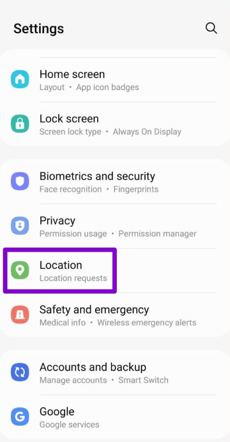
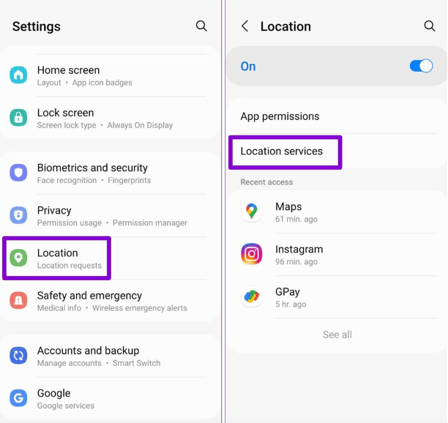
Step 1: Open the Settings app on your phone and tap Location
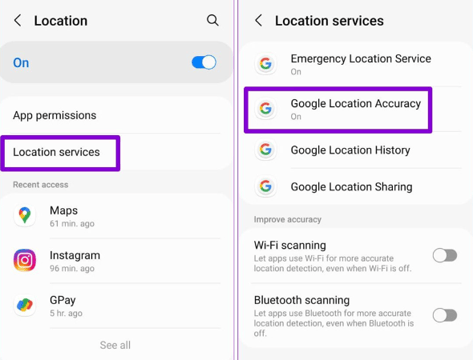
Step 2: Go to Location services and tap on Google Location Accuracy
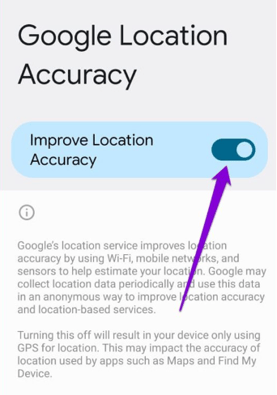
Step 3: Toggle on the switch next to Improve Location Accuracy
- **Calibrate the Compass**
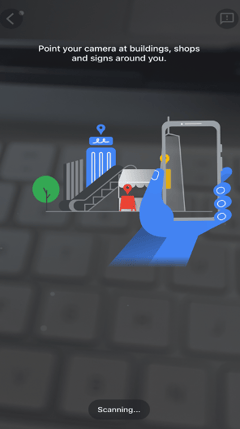
Step 1: Launch the Google Maps app on your phone.
Step 2: Tap the blue dot icon on the map showing your current location. If you can’t find it, tap on your location option on the bottom right.
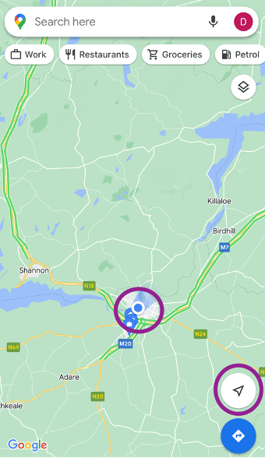
Step 3: Then tap on the Calibrate option

Step 4: You’ll need to tilt and move your phone. You might have to do this a few times until the Compass accuracy improves. After that, Google Maps should become more accurate than earlier.
- **Enable Bluetooth scanning on the Location setting to improve the location accuracy**
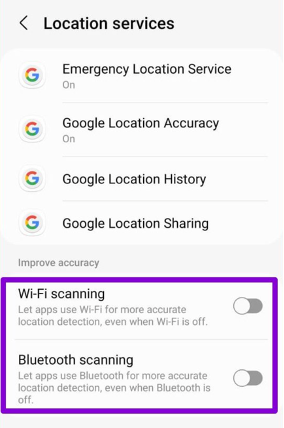
Step 1: Open up the Settings app on your phone and head over to Location settings. Then tap on Location services.
Step 2: Toggle on the switches next to Wi-Fi scanning and Bluetooth scanning.
- **Give the location permission to Google map and Mapall app in the way that the access on the location Screen should be “Allow all the time”**
Step 1: Launch the Settings app on your phone and tap on Location.
Step 2: Go to App Permissions. You’ll find a list of apps categorized based on their location permissions.
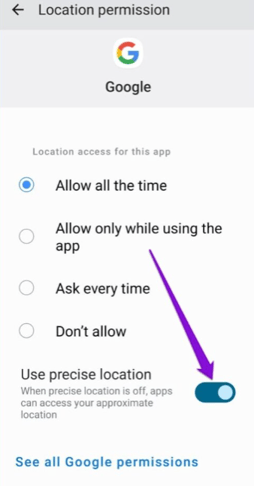
Step 3: Tap on the particular app and ensure that the location permission for the app is set to ‘Allow all the time’ or ‘Allow only while using the app.’
Step 4: Lastly, turn on the Use precise location toggle to allow the app to detect your location accurately
- **Please make sure your Android devices is updated with Android API versions over 12.**
- [Android](https://support.mapall.com/android?hsLang=en)
- [General Information](https://support.mapall.com/general-information?hsLang=en#main-content)
- [System Settings](https://support.mapall.com/general-information?hsLang=en#system-settings)
- [Asset Customisation](https://support.mapall.com/general-information?hsLang=en#asset-customisation)
- [Regional Settings](https://support.mapall.com/general-information?hsLang=en#regional-settings)
- [Field Users](https://support.mapall.com/general-information?hsLang=en#field-users)
- [Map](https://support.mapall.com/general-information?hsLang=en#map)
- [App Update](https://support.mapall.com/general-information?hsLang=en#app-update)
- [Password](https://support.mapall.com/general-information?hsLang=en#password)
- [A55s](https://support.mapall.com/a55s?hsLang=en#main-content)
- [Training Videos](https://support.mapall.com/a55s?hsLang=en#training-videos)
- [Blockage](https://support.mapall.com/blockage?hsLang=en#main-content)
- [Training Videos](https://support.mapall.com/blockage?hsLang=en#training-videos)
- [Build](https://support.mapall.com/build?hsLang=en#main-content)
- [Training Videos](https://support.mapall.com/build?hsLang=en#training-videos)
- [Survey Module](https://support.mapall.com/build?hsLang=en#survey-module)
- [Survey](https://support.mapall.com/build?hsLang=en#survey)
- [Projects](https://support.mapall.com/build?hsLang=en#projects)
- [Build 2.0 Module](https://support.mapall.com/build?hsLang=en#build-2-0-module)
- [New Releases](https://support.mapall.com/new-releases?hsLang=en#main-content)
- [Blockage - A55s](https://support.mapall.com/new-releases?hsLang=en#blockage-a55s)
- [MapAll Designer](https://support.mapall.com/new-releases?hsLang=en#mapall-designer)
- [Build - Planning tool](https://support.mapall.com/new-releases?hsLang=en#build-planning-tool)
- [FAQs](https://support.mapall.com/faqs?hsLang=en#main-content)
- [ADT - Asset Defect Tracking](https://support.mapall.com/faqs?hsLang=en#adt-asset-defect-tracking)
- [Design Tool](https://support.mapall.com/design-tool?hsLang=en#main-content)
- [Import plan](https://support.mapall.com/design-tool?hsLang=en#import-plan)
- [Admin Settings](https://support.mapall.com/admin-settings?hsLang=en#main-content)
- [Forms](https://support.mapall.com/admin-settings?hsLang=en#forms)
- [System Settings](https://support.mapall.com/admin-settings?hsLang=en#system-settings)
[](http://mapall.com)
[mailto:email@email.com](mailto:email@email.com)
Copyright © 2026, MapAll